
When a seller picks your bid you get an alert, and the car moves to your Won cars page. If you agreed to texts, we text you too, unless you turned that text off in Settings. Every other buyer whose bid was still on the car is told it has been sold to another buyer.
The pickup time
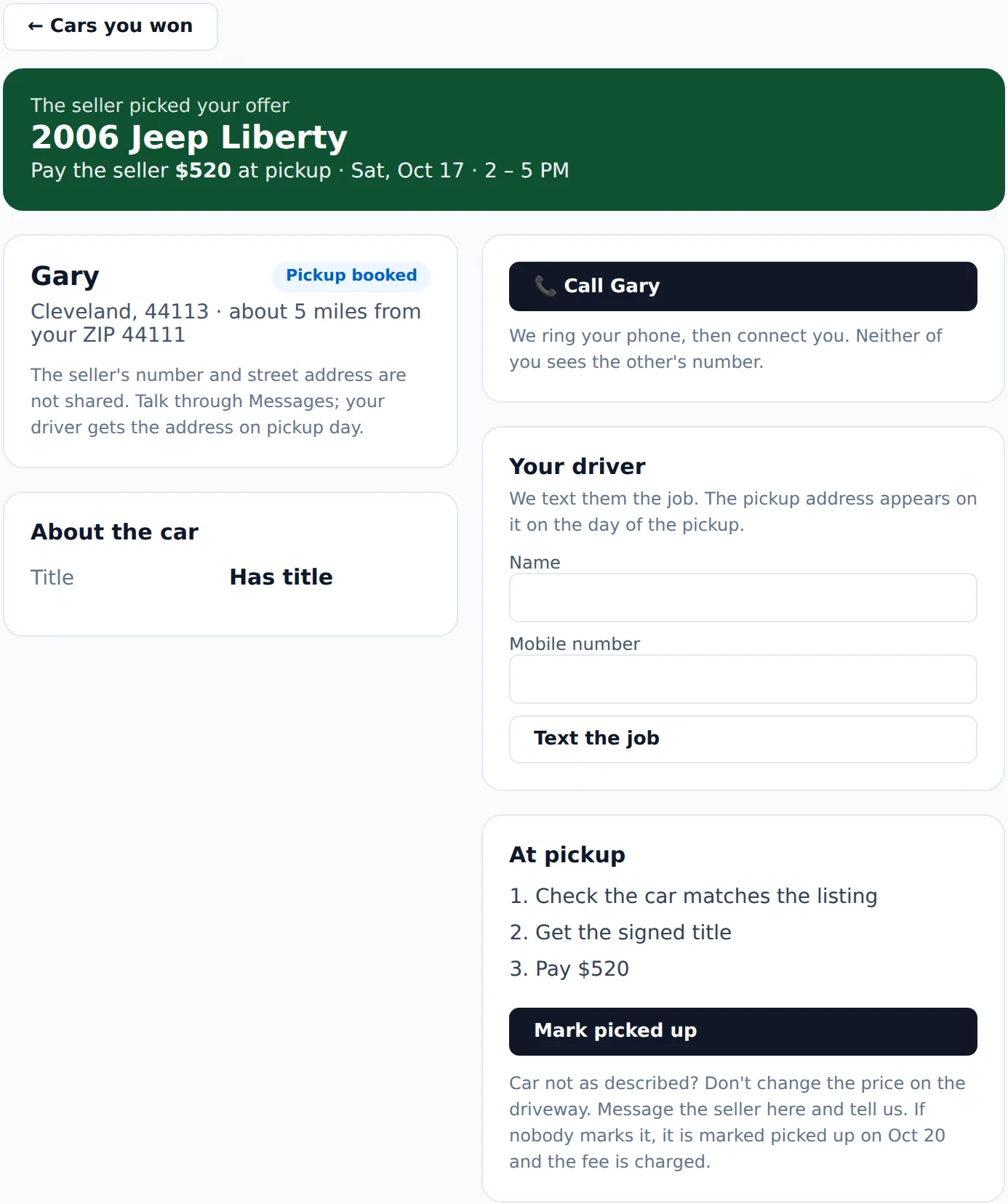
The seller books a pickup time: the time on your bid or a later time you have open, up to a week ahead. You hear when they book it, and again if they move it. You also get a reminder the evening before the pickup, sent between 5 and 9 PM on the clock where the car is, and another from 7 AM on the morning of it.
If a day goes by and the seller has not booked a time, we remind them to book one, by text if they agreed to texts, and we let you know. We remind them again after three days, and from then on they can also tell us on their board that the car was already picked up. If a week goes by with no time booked, our team is told. Message or call the seller to settle a time.
Talking to the seller
You now see the seller’s first name and town. Their phone number, email and street address never appear on your screens, and phone numbers and emails are taken out of messages, and out of any note the seller leaves for your driver, automatically. A message that tries to swap numbers, or asks the seller to talk on another app, is flagged to our team, and a note says so under the message box. To talk, use the messages on the car’s page, or press the Call button. It rings your phone first and then connects you to the seller from our number, so neither of you sees the other’s number. Calls go through from 8 AM to 9 PM the seller’s time, so outside those hours, send a message instead.
Sending your driver
In Your driver, type your driver’s mobile number, and their name if you like, and press Text the job. Your driver gets a link to a job page with the car and the time. On the day of the pickup and the day after, that page also shows the street address, with one tap into Google Maps, Apple Maps or Waze, and lets your driver call the seller, tell them they are on the way and mark the car picked up. Marking it picked up asks once more on a page of its own, where your driver can add a photo of the car on the truck. You and our team can see that photo on the car’s page, and the seller never does. If you send the same driver more than one car, each job page lists their other pickups for you. The address is not on the page before the pickup day or after the day after, and while the seller says the pickup did not happen, those tools stay off until a new time is booked. Sending the job again, to a new driver or the same one, stops the old link working.
On the pickup day and the day after, the car’s page has an On my way button too, which tells the seller someone is coming, just like the button on your driver’s page. If nobody has said they are on the way half an hour after your pickup time starts, we send you an alert asking whether you are still coming, so the seller is not left waiting.
Picking it up
Pay the seller the amount you bid. We don’t handle that payment, so pay them the way you normally pay for a car. Then press Mark picked up, which records our fee and charges it to your card. Your driver can also mark it from their job page on the pickup day or the day after.
Once your pickup time has started, the seller can tell us on their board whether the car was picked up, and the day after the pickup we ask them as well. If they say yes, it is marked picked up for you. If nobody says either way, it is marked picked up a few days after the pickup date. If the seller says it was not picked up, we stop it from being marked picked up on its own, and we tell you and our team. Nothing is charged until the car is marked picked up. Message or call the seller to sort out a new time, which they book on their board.